
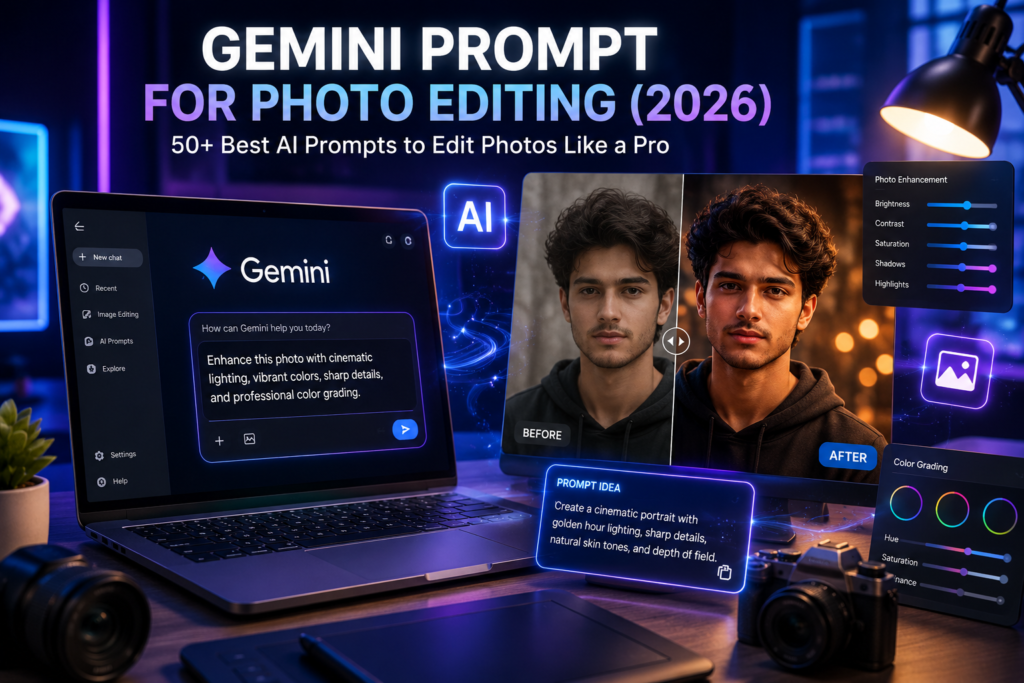
Photo editing has come a long way in the last few years. What once required expensive software and advanced editing skills can now be done much faster with AI tools like Google Gemini. With the right prompt, you can improve image quality, change backgrounds, restore old photos, or even create stunning cinematic effects in just a few steps.
The quality of your final image depends on how well you describe your requirements. A clear and detailed prompt helps Gemini understand exactly what you want, resulting in more accurate and realistic edits.
In this guide, you’ll learn what a Gemini photo editing prompt is, how it works, and you’ll also get ready-to-use prompts that you can copy and customize for your own photos.
What Is a Gemini Prompt for Photo Editing?
A Gemini photo editing prompt is simply a written instruction that tells Gemini how you want your image to be edited. Instead of editing the picture manually, you describe the changes you want, and the AI uses those instructions to generate the final result.
Think of it as giving directions to a professional photo editor. The more clearly you explain your requirements, the more likely you are to get the look you’re aiming for.
A well-written prompt usually includes:
- The subject or main focus of the image
- The editing style you want
- Lighting and shadow adjustments
- Color enhancements
- Background changes
- Camera or lens effects
- Output quality such as HD, 4K, or 8K
- Aspect ratio, if required
Including these details gives Gemini a better understanding of your vision and helps produce higher-quality results.
How to Use Gemini for Photo Editing
Using Gemini for photo editing is straightforward, even if you’re new to AI tools.
- Open Google Gemini.
- Upload the photo you want to edit.
- Copy and paste your preferred editing prompt.
- Let Gemini generate the edited version.
- If the result isn’t exactly what you expected, refine your prompt by adding more details and try again.
Best Gemini Prompt for Photo Editing
If you’re looking for a prompt that works well for most photos, start with the one below. It focuses on improving image quality while keeping the subject’s appearance natural.
Professional Photo Editing Prompt
Edit this photo professionally while maintaining the person’s natural appearance. Improve the lighting, balance the skin tones, increase sharpness, enhance the image to Ultra HD quality, remove unwanted background distractions, apply cinematic color grading, create soft natural shadows, preserve facial details, keep the colors vibrant yet realistic, and give the image a premium DSLR-style finish.
Portrait Editing Prompt
Want your portrait to look like it was taken in a professional studio? Use this prompt.
Transform this portrait into a premium professional headshot. Improve facial lighting, smooth the skin naturally without removing its texture, brighten the eyes, sharpen the hair details, add a realistic background blur (bokeh), and create a clean studio-quality portrait with natural-looking colors.
Background Change Prompt
A cluttered background can distract from the main subject. This prompt helps create a cleaner and more professional look.
Replace the existing background with a modern luxury office while keeping the subject completely natural. Match the lighting, shadows, reflections, and perspective so the final image looks realistic and seamless.
Cinematic Photo Editing Prompt
If you love movie-style images, this prompt is a great choice.
Give this photo a cinematic movie-style look with dramatic lighting, teal and orange color grading, realistic shadows, premium contrast, rich depth, and ultra-realistic 8K quality.
Travel Photo Editing Prompt
Travel photos often look even better with a few professional enhancements.
Enhance this travel photo by improving the colors, creating a bright blue sky, increasing sharpness, balancing the lighting, maintaining natural skin tones, and giving the image a professional travel photography look.
Product Photo Editing Prompt
Perfect for online stores, marketplaces, or social media promotions.
Convert this product image into a premium eCommerce photo with a clean white background, balanced studio lighting, sharp product edges, realistic reflections, high-resolution quality, and a professional commercial appearance.
Old Photo Restoration Prompt
Bring old memories back to life with this restoration prompt.
Restore this old photograph by removing scratches, repairing damaged areas, improving facial details, increasing the image resolution, correcting faded colors, and preserving the original character of the photo.
Social Media Photo Editing Prompt
Create eye-catching images for Instagram, Facebook, or other social platforms.
Edit this photo for social media by enhancing the colors, adding soft natural lighting, improving contrast, keeping skin tones realistic, sharpening fine details, and creating a modern, premium aesthetic.
Black and White Photo Editing Prompt
A timeless black-and-white effect can make portraits look elegant and artistic.
Convert this image into a classic black-and-white portrait with rich contrast, deep shadows, detailed highlights, and a fine-art photography style.
Fantasy Style Photo Editing Prompt
If you enjoy creative edits, this prompt adds a magical touch to your photos.
Transform this photo into a breathtaking fantasy scene with glowing lights, cinematic lighting, dramatic clouds, vibrant colors, mystical visual effects, and ultra-realistic digital art quality.
Gemini Photo Editing Prompts
Portrait Prompts
Portrait Prompt 1
Portrait Prompt 2
Portrait Prompt 3
Portrait Prompt 4
Portrait Prompt 5
Portrait Prompt 6
Portrait Prompt 7
Portrait Prompt 8
Portrait Prompt 9
Portrait Prompt 10
Background Prompts
Background Prompt 1
Background Prompt 2
Background Prompt 3
Background Prompt 4
Background Prompt 5
Background Prompt 6
Background Prompt 7
Background Prompt 8
Background Prompt 9
Background Prompt 10
Cinematic Prompts
Cinematic Prompt 1
Cinematic Prompt 2
Cinematic Prompt 3
Cinematic Prompt 4
Cinematic Prompt 5
Cinematic Prompt 6
Cinematic Prompt 7
Cinematic Prompt 8
Cinematic Prompt 9
Cinematic Prompt 10
Travel Prompts
Travel Prompt 1
Travel Prompt 2
Travel Prompt 3
Travel Prompt 4
Travel Prompt 5
Travel Prompt 6
Travel Prompt 7
Travel Prompt 8
Travel Prompt 9
Travel Prompt 10
Product Prompts
Product Prompt 1
Product Prompt 2
Product Prompt 3
Product Prompt 4
Product Prompt 5
Product Prompt 6
Product Prompt 7
Product Prompt 8
Product Prompt 9
Product Prompt 10
Tips for Getting Better Results with Gemini
A great prompt can make a huge difference in the final image. If you want more realistic and professional-looking edits, keep these simple tips in mind:
- Be as specific as possible when describing the changes you want.
- Mention the lighting style, color tone, and overall mood of the image.
- Clearly explain the background you want to keep, remove, or replace.
- Ask for natural-looking skin tones instead of overly smooth skin.
- Specify the output quality, such as HD, 4K, or 8K, for sharper results.
- If the first result isn’t perfect, refine your prompt by adding more details and try again.
Remember, small changes to your prompt can often produce much better results.
Frequently Asked Questions
Can Gemini edit photos?
Yes. Gemini can help generate detailed editing instructions and, depending on the features available in your version, assist with AI-powered photo editing.
Do detailed prompts give better results?
In most cases, yes. Detailed prompts provide clearer instructions, allowing Gemini to understand your requirements more accurately and produce higher-quality edits.
Can Gemini remove or replace photo backgrounds?
Absolutely. You can ask Gemini to remove the existing background or replace it with a completely new one. For the best results, describe the new background clearly.
Can I improve old or blurry photos with Gemini?
Yes. Gemini can help restore old photos, improve image quality, increase resolution, and reduce visible damage when supported by the available editing features.
Is Gemini suitable for professional photo editing?
Gemini is a great option for many creative and everyday editing tasks. While the final result depends on the available tools and the quality of your prompt, detailed instructions usually produce more professional-looking images.
Conclusion
Photo editing is no longer limited to professional designers or expensive software. With the right Gemini photo editing prompt, anyone can create impressive, high-quality images in just a few minutes.
Whether you’re enhancing portraits, restoring old memories, editing product photos, or creating cinematic artwork, well-written prompts help you achieve better and more consistent results.
Feel free to use the prompts shared in this guide as they are or customize them to match your own style. The more detailed your instructions, the closer your final image will be to the result you have in mind.