
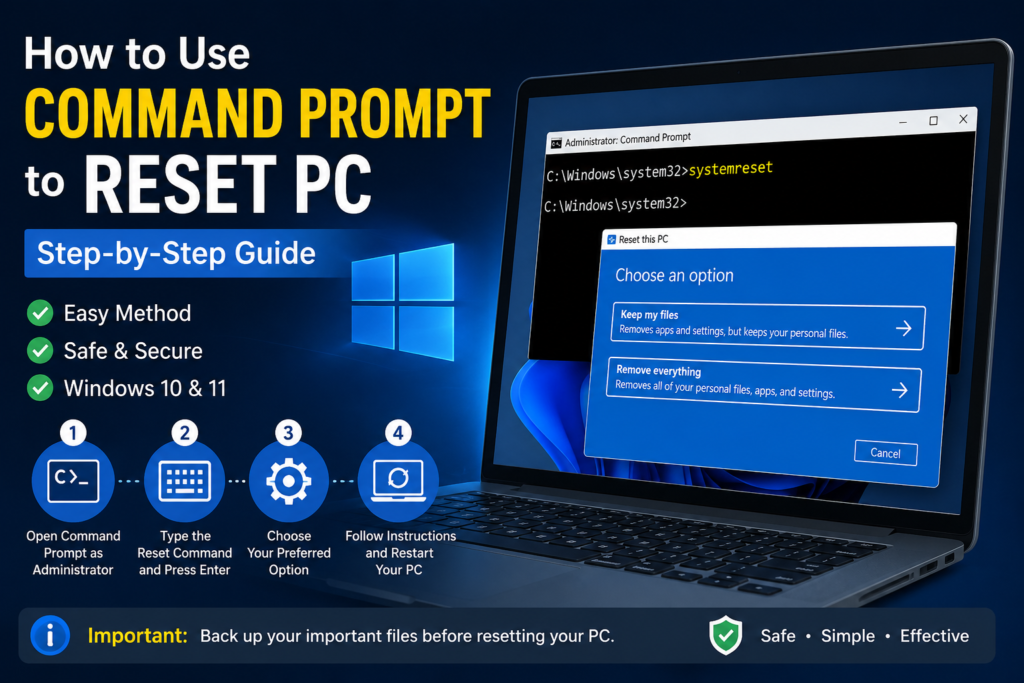
If your Windows PC has become slow, keeps freezing, or is experiencing software issues, resetting it can often solve the problem. While most people use the Settings app to reset Windows, you can also start the reset process through Command Prompt (CMD).
In this guide, you’ll learn how to reset your Windows PC using Command Prompt, when to use it, and what to expect before you begin.
What Is Command Prompt?
Command Prompt is a built-in Windows utility that lets you perform system tasks by entering text commands. It is commonly used for troubleshooting, repairing Windows, and accessing advanced system features.
One useful feature is the ability to open the Windows reset tool directly from CMD.
Why Reset a Windows PC?
Resetting your PC can be helpful if:
- Your computer has become very slow.
- Windows frequently crashes or freezes.
- Malware has affected system performance.
- Important system files are damaged.
- You want a fresh start without manually reinstalling Windows.
Steps to Reset Your PC Using Command Prompt
Step 1: Open Command Prompt
Search for Command Prompt in the Start menu, then right-click it and choose Run as administrator.
Step 2: Launch the Reset Tool
Enter the following command and press Enter:
systemreset
If your Windows version supports it, the Reset this PC window will open.
If the command isn’t available, use the Windows Recovery settings instead.
Step 3: Select Your Preferred Option
Windows will ask you to choose one of the following:
Keep My Files
- Reinstalls Windows.
- Removes installed apps.
- Keeps your personal files.
Remove Everything
- Deletes personal files, apps, and settings.
- Ideal if you’re selling or giving away the computer.
Step 4: Complete the Reset
Follow the on-screen instructions. Your PC may restart several times during the process. Once finished, Windows will be reinstalled and ready to use.
Things to Do Before Resetting
Before you begin, make sure to:
- Back up important files.
- Plug your laptop into a power source.
- Remember your Microsoft account password.
- Disconnect unnecessary external devices.
If the Command Doesn’t Work
Some newer Windows versions no longer support the systemreset command. In that case:
- Open Settings.
- Go to System > Recovery.
- Click Reset this PC.
- Continue with the guided steps.
Frequently Asked Questions
Will resetting my PC delete everything?
Not necessarily. If you choose Keep My Files, your personal documents and photos remain, but installed applications are removed.
Is resetting better than reinstalling Windows?
For most users, yes. Resetting is easier and faster because Windows provides the recovery tools automatically.
Can resetting fix performance issues?
Yes. A reset often resolves software-related problems, corrupted files, and system instability.
Final Words
Using Command Prompt to access the Windows reset feature is a simple method that can save time when troubleshooting your computer. Whether your PC is running slowly or facing software issues, resetting Windows can give it a fresh start. Just remember to back up your important files before beginning the process.